When you scroll a 2D scroller on a website, the browser does a lot of work behind the scenes to keep you on track. One of the things it typically does is scroll axis-locking (aka “railing”), ignoring some minor scroll deltas in the non-main scrolling axis. While helpful most of the times, this sometimes can get in the way such as in map or image zoom interfaces. With the new CSS scroll-axis-lock property you can disable the browser’s default scroll axis-locking behavior, allowing users to immediately perform a diagonal scroll.
~
Scroll Axis Locking?
By default, a browser often “locks” a user’s scrolling gesture to a single axis when that gesture starts with significantly more movement in one axis than in the perpendicular axis.
For example, say a user drags their finger on the screen such that the element underneath the finger would be scrolled by 500px in the y-axis and 3px in the x-axis. Because the gesture is almost entirely vertical, the browser might interpret the user’s intent to be a perfectly vertical scroll. As such, the browser can ignore the 3px scroll delta and (possibly) all further x-axis deltas for the remainder of the gesture. In this case, the browser has “locked” the scroll to the y-axis — a technique also known as “railing”.
In many cases, this scroll-locking behavior improves the user’s experience by avoiding accidental scrolls along the other axis when the user’s intent was to scroll only one axis.
However, in cases where you wish an element to always be diagonally scrollable, this locking behavior forces the user to start their gesture at an angle that doesn’t trigger the locking, often not in alignment with the author’s intended user experience.
Thankfully, a recent change to CSS now offers control over this, namely the scroll-axis-lock property described in the CSS Overflow 5 specification.
💁♂️ Note that this axis-locking behavior totally depends on the browser and platform. Safari and Firefox on macOS for example are very strict at it, while Chrome on macOS tries to more closely reflect your scroll’s intent (but still applies some locking)
Compare these two screenshots of Safari and Chrome: Safari’s scroll axis-locking results in a more etch-a-sketch-like scroll when scrolling in the shape of a circle (or attempt thereof 😅).

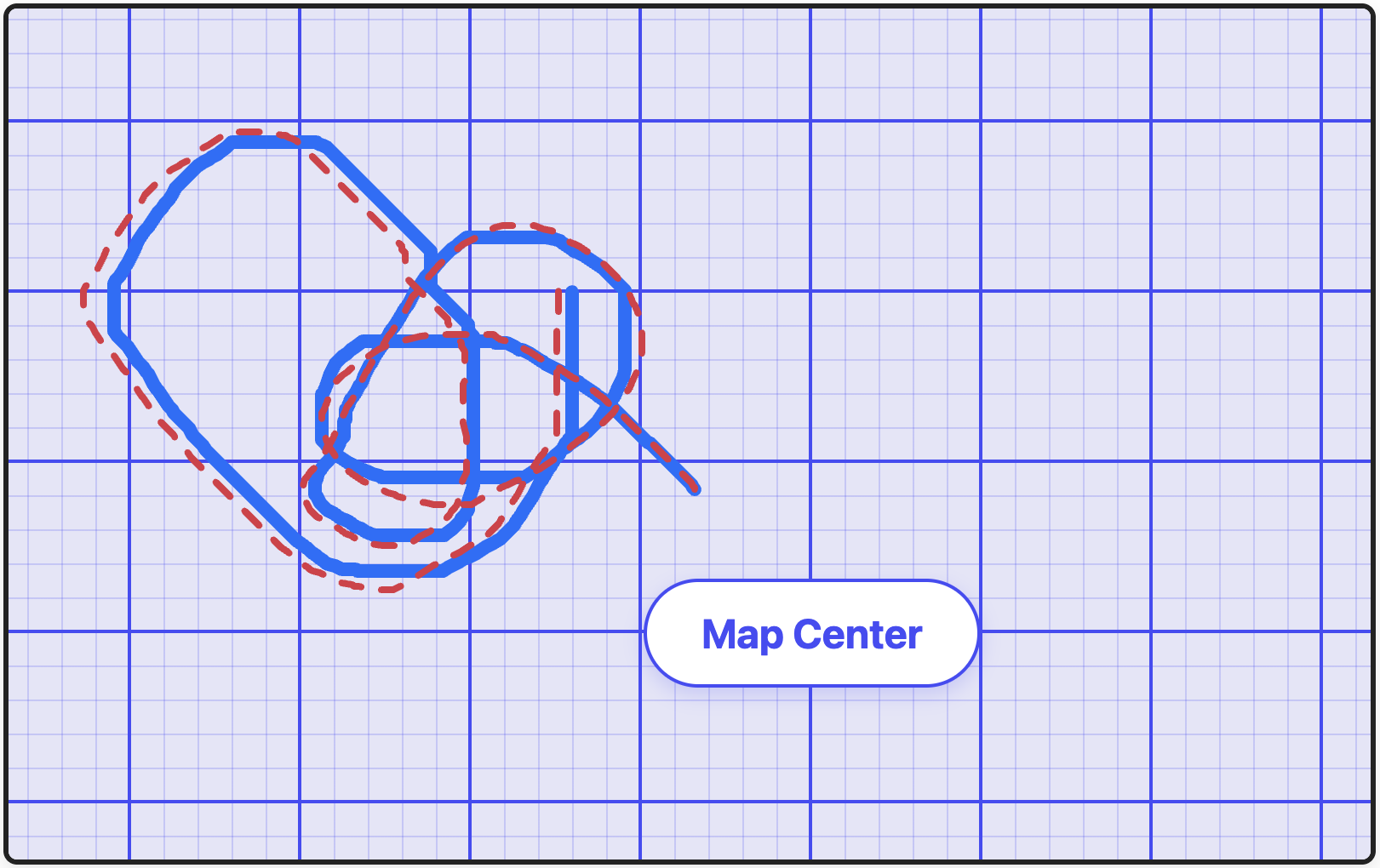
As for touch-platforms: From what I can tell, Safari on iOS doesn’t scroll lock at all, whereas Chrome on Android does.
~
Control scroll axis-locking with scroll-axis-lock
The scroll-axis-lock property gives you control scroll axis-locking. The property accepts the following values:
auto(default): The browser may lock the scroll to a single axis if it determines the gesture is predominantly 1-dimensional. The browser may allow you to break out of scroll axis lock as part of your current gesture, but the thresholds to do that are different per browser and platform.none: Disables the locking mechanism entirely. The scroll container will faithfully follow the user’s exact input, allowing for unrestricted diagonal panning.
.scroller {
  scroll-axis-lock: auto; /* Default */
  /* or */
  scroll-axis-lock: none;
}
In the following video, you can compare how both values behave. The recording show Chrome 153 on macOS, but with a different scroll-axis-lock value. The scroll is performed using a trackpad.
The difference also becomes very clear when doing scrolls that follow a circular motion:
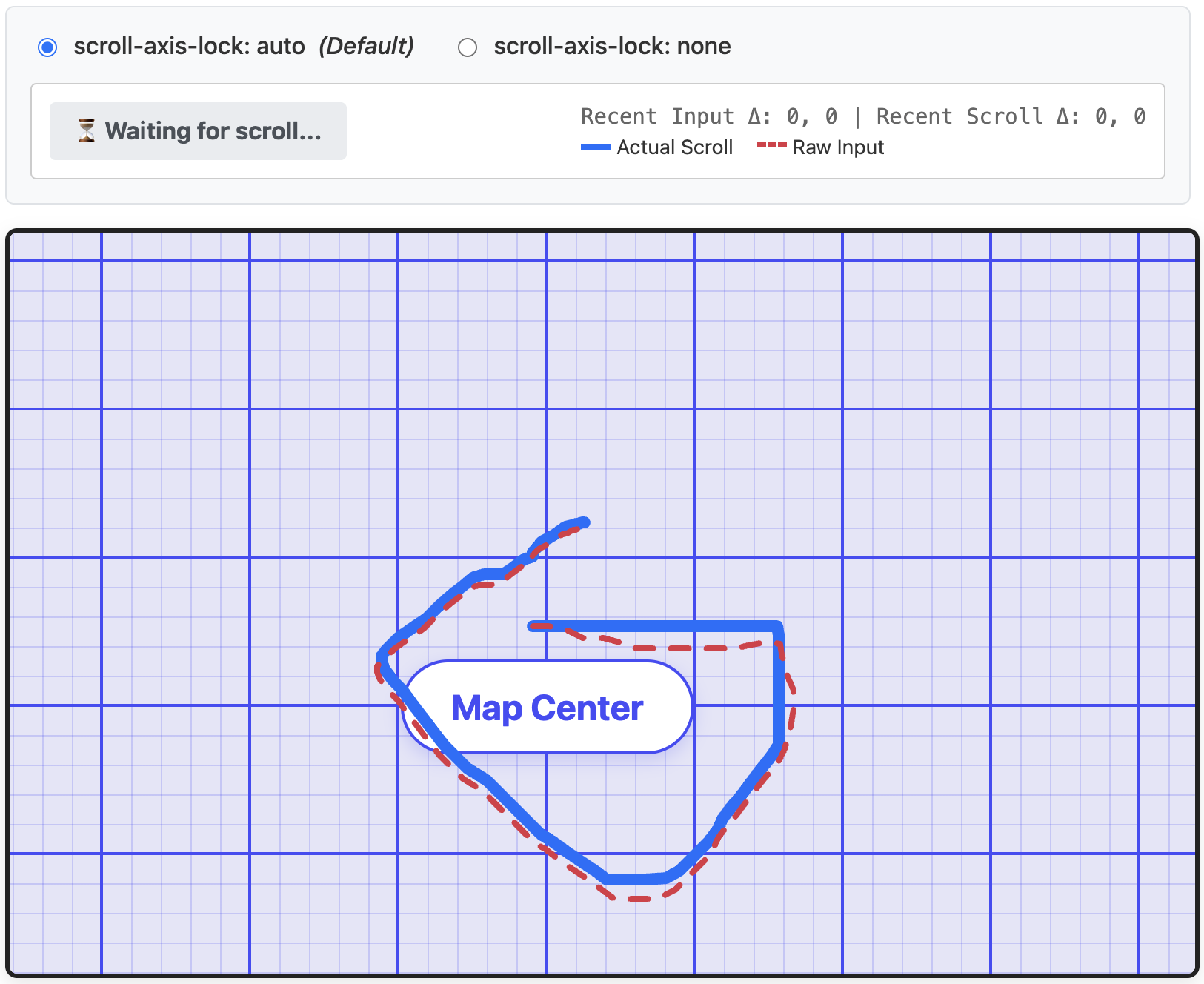
scroll-axis-lock: auto. The scroll (solid blue line) resembles the scroll input (dashed red line), but is not 100% following the input.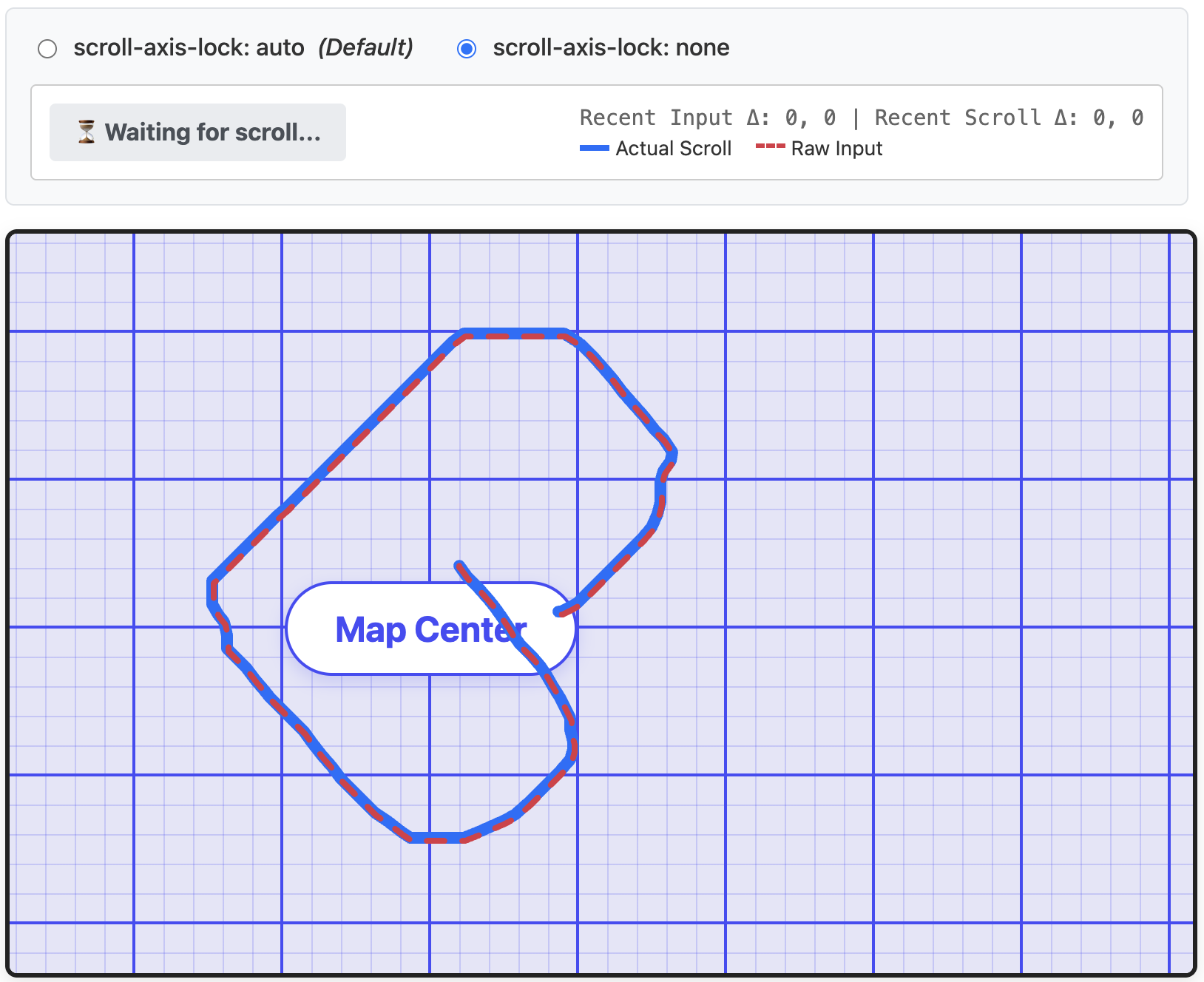
scroll-axis-lock: none. Because scroll axis-locking is disabled, the scroll (solid blue line) is identical to the scroll input (dashed red line).~
Try it yourself
To feel the difference yourself (and to create the screenshots and videos above), I built a demo that samples your pointer’s X/Y input deltas and compares them against the actual scrollLeft and scrollTop output of the container.
If you try scrolling diagonally with scroll-axis-lock: auto, you’ll notice the status indicator flag can show a “Axis Locked” warning it detects that the browser is ignoring your perpendicular input. As mentioned before this totally depends on the browser and platform, so could be that you don’t see this warning at all.
If you set the toggle to scroll-axis-lock: none, and try again, scrolling straight is way more “jittery” and scrolling diagonally immediately pans in both directions simultaneously, exactly following your gesture.
~
# Browser Support
💡 Although this post was originally published in August 2026, the list below is constantly being updated. Last update: Aug 9, 2026.
Support for scroll-axis-lock looks like this:
- Chromium (Blink)
-
✅ Supported in Chromium 153
- Firefox (Gecko)
-
❌ No Support
- Safari (WebKit)
-
❌ No Support
~
Feature Detection
There is no real need to feature detect this, as you can safely use scroll-axis-lock today as a progressive enhancement. Since it doesn’t break anything when ignored, you can just declare it directly 🙂
If you really do need to feature detect it — perhaps to load some alternative code? — you can use an @supports rule in CSS or CSS.supports() in JS to check.
@supports (scroll-axis-lock: none) {
  /* Control over scroll-axis locking supported */
}
if (CSS.supports('scroll-axis-lock: none')) {
/* Control over scroll-axis locking supported */
}The following embed uses this feature detection to indicate whether your current browser supports scroll-axis-lock:
See the Pen
CSS scroll-axis-lock Support test by Bramus (@bramus)
on CodePen.
~
Spread the word
Feel free to reshare one of the following posts on social media to help spread the word:
~
🔥 Like what you see? Want to stay in the loop? Here's how:
I can also be found on 𝕏 Twitter and 🐘 Mastodon but only post there sporadically.


So Safari on iOS actually does have scroll-locking. I can’t get it to trigger in the embedded demo you have, but if I zoom in on a page and try panning around it does lock if my gesture is close enough to horizontal or vertical.