 What if you could extract all text strings from a PSD file into a TXT file? Sure, it’s possible, thanks to
 PS_BRAMUS.TextExport, the PSD2TXT script I wrote a few months ago. Now, what if you wanted to do that in the opposite direction and import strings from a TXT file into a PSD file (viz. TXT2PSD)? Look no further, PS_BRAMUS.TextConvert is here, and does both!
What is PS_BRAMUS.TextConvert
Don’t like reading? Member of the lazyweb? Savvy enough? You might as well just skip to the example then 😉
PS_BRAMUS.TextConvert is the successor of PS_BRAMUS.TextExport and consists out of two scripts:
PS_BRAMUS.TextConvert.Export(PSD2TXT)PS_BRAMUS.TextConvert.Import(TXT2PSD)
The first script is a modded version of PS_BRAMUS.TextExport which scans your PSD file for text strings. After retrieving all text, the output is saved into a TXT file in your Documents folder.
The second script is the counterpart: it reads in TXT files (which you first exported via the first script) and replaces all text layers with the new content in your PSD file.
Is PS_BRAMUS.TextConvert something for me?
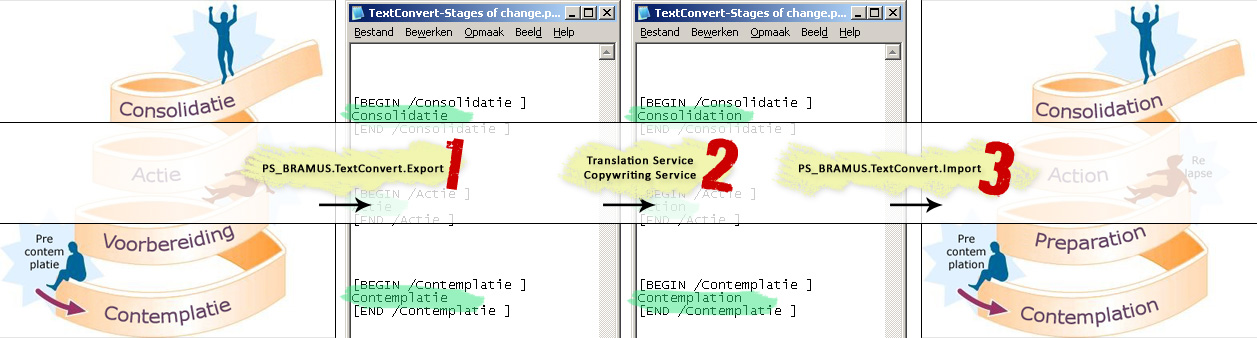
PS_BRAMUS.TextConvert is ideal for agencies/companies who need to translate Photoshop mockups: Export all text layers via PS_BRAMUS.TextConvert.Export to a text file, send that text file to the translation agency and let them do the translation, then import the translated file via PS_BRAMUS.TextConvert.Import into the PSD file.

Of course its usage is not limited to the example above. The Export part of PS_BRAMUS.TextConvert can be used for (speed)slicing for example
Requirements
PS_BRAMUS.TextConverthas been tested and verified working with Photoshop CS2 and up (Photoshop CC also supported)
Download / License
PS_BRAMUS.TextConvert released under a MIT license. Should you use the script within a commercial context, or if you want to put a smile on my face, please consider making a donation.
▼ Download PS_BRAMUS.TextConvert
Note: PS_BRAMUS.TextConvert was made possible by means of lexia:park, Barcelona, Spain.
Installation
- Download
PS_BRAMUS.TextConvertfrom the link above - Extract it to the Presets/Scripts folder of your Photoshop installation folder (defaults to
C:\Program Files\Adobe\Adobe Photoshop CS3\Presets\Scriptson Windows) - Restart Photoshop if it was already running (important!)
How to use PS_BRAMUS.TextConvert
Once installed, usage is simple:
1. Exporting text (PSD2TXT)

- In Photoshop go to File > Scripts and select
PS_BRAMUS.TextConvert.Export-1.0from the list to export all text. - Per open PSD file, a
TextConvert-[NAME_OF_YOUR_PSD_FILE].txtfile will appear in your Documents folder
(if multiple files are open, you can choose to only runPS_BRAMUS.TextConvert.Exporton the currently active file or on all files) - After the export was done, you’ll get a little notification of this
(ifPS_BRAMUS.TextConvert.Exportran with a single file, the .txt file will open instead)
2. Reworking text
- Locate the exported .txt file in your Documents folder and open it with your favorite text editor
- Translate the strings you find in there, but make sure that you leave the
[BEGIN /XXXX ]and[END /XXXX ]lines untouched! (If changed importing will fail) - Save the text file with the same name in the same location.
3. Importing text (TXT2PSD)
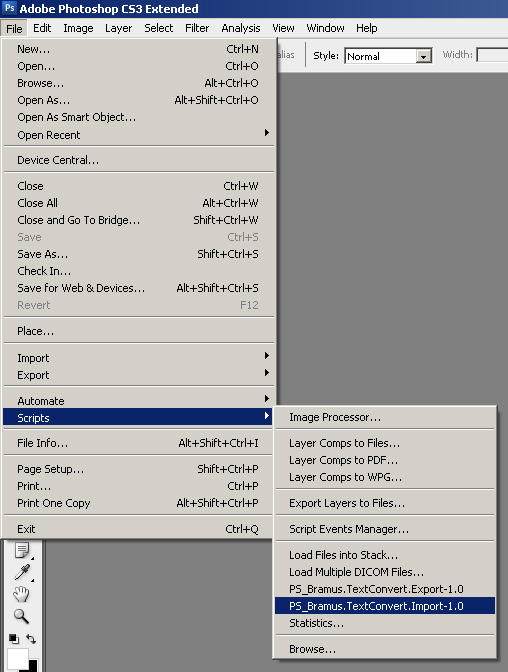
- In Photoshop go to File > Scripts and select
PS_BRAMUS.TextConvert.Import-1.0from the list to import all text. - Per open PSD file, the script will look if the
TextConvert-[NAME_OF_YOUR_PSD_FILE].txtfile exists in your Documents folder, read it in (if it exists) and update the text layers of your PSD file
(if multiple files are open, you can choose to only runPS_BRAMUS.TextConvert.Importon the currently active file or on all files) - After the import was done, you’ll get a little notification of the number of files updated
(if no txt files were found, then it will state that 0 files where changed)
Warning!
- Please note that
PS_BRAMUS.TextConvert.Importis not compatible with any versionPS_BRAMUS.TextExport! - Please note that in between the running of the Export and Import NO CHANGES TO THE PSD FILE can be done!
Example
Given the fact that the image pictured on the left is a normal Photoshop file (viz. background layer, image elements on different layers, text layers, layer groups, etc) I’m quite sure the figure below explains it all:
Now, did you download PS_BRAMUS.TextConvert already?
Did this help you out? Like what you see? Consider donating.
It certainly is no obligation but it would put a smile on my face. Thanks! 🙂


great idea!
bramus strikes again 🙂
wonderful! I will be donating today! 🙂
A question please: I would like to run the script on multiple files. What can I do instead of manually opening/closing all the files? I thought of batch processing, but the menu file>>automate>>batch… only works with actions, not with scripts 🙁
thanks for your help!
PS: regarding my previous comment:
I meant, I would like to run the script on all files in a given folder.
First of all great idea as I need to do some translations. I am
trying this with CS5 and I get an empty text file, any idea what I could be doing wrong? I get the script in the scripts menu and
I selected the export script and an empty text file opened.
Any help would be appreciated.
Thanks,
Luis
Great idea indeed! I was excited *_____*
Have run it on PS4 Portable. Seems not to work with Korean text though. Works with Latin and Cyrillic characters.
Sorry, I cannot donate as I’m not able to use PayPal. What about Webmoney?
Wow, this is actually working 🙂 Thanks!
Regex code that include only layer markups in output text file is:
\[(.*?)\]Just did a quick test and it seems to work perfectly in Photoshop CC – thanks!
Thanks for letting me know! 🙂
No worky with CS5 and foreign languages – tried with 32bit and 64bit PS versions and it just hangs the application…to bad I really need this…
I had the same problem. Is there any support for languages in Unicode/UTF-8?
Hi Bram, I just sent you an email but I thought I might leave a comment too as I’m hoping to get a response quite desperately and this might help others in the future with the same issue.
First of all thanks so much for developing such a great plugin.
I have a problem, when I reimport the txt all the content comes in ok but the text size changes of many of the layers. Do you know what might be causing this?
I’m using Mac and CC Photoshop.
Thanks in advance for your response!
Hi Max,
Good thing you’ve also replied here as it looks like I didn’t get your mail.
Regarding the issue you’re having: this isn’t something I’ve encountered myself before, nor have heard from anyone else.
Does it happen with *all* PSDs, or just one?
Regards,
Bram.
Tried on CC 32 bit and it works… but not with Russian. French and Spanish seem OK.
Hello,
Is there anyway of extending this functionality to cover smart object layers?? that would be amazing
Hello,
This is a great plugin – Thank you!
However, I would really like to be able to specify the location of the extract file.
I’ve never done any scripting but I’ve had a look at the file and I’ve found the bit I would need to change but I have no idea how to change it.
What would I need to do?
Thanks again 🙂
this script is great but is there anyway that it can word doc can be populated in reverse. My PSD files once exported as a text file has the copy from the bottom layer at the top of the word doc and continues down – my very first layer from photoshop is at the bottom of the text doc. is there a way around this?
Hi Bramus, this script does not maintain the same character formatting when we import text, for eg. if any paragraph has multiple styles (like bold, italic, etc) it does not remain in same formatting when we import text. Do you have any solution for this?
It would be a great help for me.
You sir are a legend, I read some folks looking for bold in txt docs???? This is so handy PS should have this native, cough cough 🙂
I’m making a comic with two language versions to manage and this script will save a lot of trouble. Thank you sir!
Glad to have helped 🙂
Hi Bramus,
I use Windows10, Photoshop 64 bits CS6 and your script PS_BRAMUS.TextConvert.Export.jsx
The script gives an error:
———————————————————
Fout 60:Onjuiste vorm (ongeldig token).
Lijn: 627
-> function initTextConvertExport() {
———————————————————
I tried your script about a year ago with the same result and then removed it from Photoshop and left it as it was. I now downloaded your script again, reinstalled it but still this error.
Any advice on this?
Frank
This is a life saver if you have a comic book in couple languages! Thanks!!
Very nice script and does the job neatly, though leaving out some details. Congrats
Error Not well formed INVALID TOKEN, in Photoshop CC 2015.5.1
Hi Bramus,
This is exactly what I need! However, when I try to import strings from a TXT file into a PSD file, the script does not maintain the same character formatting, for eg. if any paragraph has multiple styles (like bold, italic, etc) it does not remain in same formatting. How can we fix this bug? Thanks in advance.