I scratched my own itch (again 😅) and built CodePen Commander — a CLI cdpn command to sync local folders with CodePen 2.0 Pens, deploy them, and manage privacy rules right from the terminal.
~
# Show, don’t tell
To immediately jump in: here is “CodePen Commander” in action. This should give you a clear idea of what this about:
codepen-commander (cdpn) in action.~
# Why?
If you ready any of my posts that contain demos, you might have noticed that these demos are typically hosted on CodePen. To build them, I used to load up the CodePen editor (via pen.new) and start typing there, but nowadays I often find myself working on a local copy or in some repo. In the end though, I still want to publish those local versions onto CodePen as well (either under my personal account or the web-dot-dev account) but keeping those local files and the online Pen in sync was quite a tedious job, as sometimes I ended up making changes online and sometimes in the local copy.
With CodePen 2.0 introducing the CodePen API v2 a while ago, all the building blocks were suddenly there to automate that entire workflow as manually copy-pasting files back and forth is not a scalable solution. The result is simple binary: cdpn, published to NPM as codepen-commander.
💁♂️ Why codepen-commander as the NPM package name while the binary is cdpn? The names codepen and codepen-cli were already taken, and cdpn / cdpn-cli tripped NPM’s similarity filter against existing packages. Plus, codepen-commander has a nice classic CLI ring to it (and doubles as a subtle nod to commander under the hood 🙂).
~
# Installation and Authentication
You can install codepen-commander globally through NPM (requires Node.js 20 or newer):
npm install -g codepen-commanderOnce installed, you get the short cdpn command available. To get started, first provide it with a CodePen API v2 key (personal cp_user_… or team cp_team_… key from codepen.io/settings/api):
cdpn auth loginRunning cdpn auth login opens the CodePen API settings page in your browser, verifies your key, and saves named profiles inside ~/.cdpn with strict 0600 owner-only permissions. You can inspect or switch profiles anytime with cdpn auth status, cdpn auth list, and cdpn auth default.
When you run a command, cdpn automatically picks the right profile: it checks an explicit --profile <name> flag first, then the CODEPEN_API_KEY environment variable (handy in CI), then the profile saved in the current folder’s .cdpn.json, and even auto-matches the Pen’s owner from the URL when cloning.
~
# Syncing Pens locally
If you have ever used Git, the day-to-day sync workflow will feel right at home. Clone an existing Pen, edit files locally in your editor of choice, check what changed, and push everything back up in a single saved version:
# Clone an existing Pen into a local folder
cdpn clone https://codepen.io/bramus/pen/abcde my-pen
cd my-pen

# Check local diffs against the online saved head
cdpn status

# Pull remote changes or push local edits (text, binaries, and deletions)
cdpn pull
cdpn push -m "Tweak layout and styles"💁♂️ When trying to clone a v1 Pen, cdpn will offer you to convert it to a 2.0 Pen first. The CodePen API does not offer this functionality out of the box, so this is a manual step you need to perform in the browser yourself.
When you push, cdpn uploads text edits, binary assets, and deletions together as one atomic version, waits for CodePen’s build pipeline to settle, reports any diagnostics, and even writes compiler patches back to your local files. And if you already have a standalone demo folder on disk that isn’t on CodePen yet, just run cdpn push inside it and it creates the Pen for you on the spot (after asking some details such as a title, privacy rules, etc.).
💁♂️ Every linked folder stores its sync metadata in a .cdpn.json file. If you are versioning your code using Git, you should commit that .cdpn.json file into your repo.
~
# Beyond syncing
Once I got the core sync loop was working, it quickly became clear how nice it is to handle the rest of the CodePen lifecycle from the terminal too.
~
Scaffolding and forking
Need a fresh Pen? Run cdpn new my-demo to scaffold a brand-new 2.0 Pen from your own CodePen Templates (fetched interactively from your account, or passed via --template) or from CodePen’s default 2.0 starter. You can even pass --as-template to mark the new Pen as a reusable template right away.
To fork one of your own Pens into a local folder, use cdpn fork <url>. This is limited to your Pens due to how the CodePen API works: you can’t fork other people’s Pens with it. To keep things smooth, cdpn offers to open the Pen in your browser so you can fork it on codepen.io itself and then paste the forked URL straight back to clone immediately.
~
Deploying, custom domains, opening in the browser, and more …
Deploying a Pen live to CodePen Hosting is a single command:
cdpn deploy                       # Push local changes and deploy live
cdpn domains                      # Show the default *.codepen.app URL + custom domains & DNS records
cdpn domains add demo.example.com # Attach a custom domain
And you can manage custom domains or jump straight into the browser just as easily:
cdpn open                         # Open the Pen editor in your browser
cdpn open --preview               # Open the preview
cdpn open --deploy                # Open the deployed site (prompts if multiple domains exist)
You can also take a deployment down with cdpn undeploy or remove custom domains with cdpn domains delete (aliased to del and rm).
The full list of commands for cdpn is this:
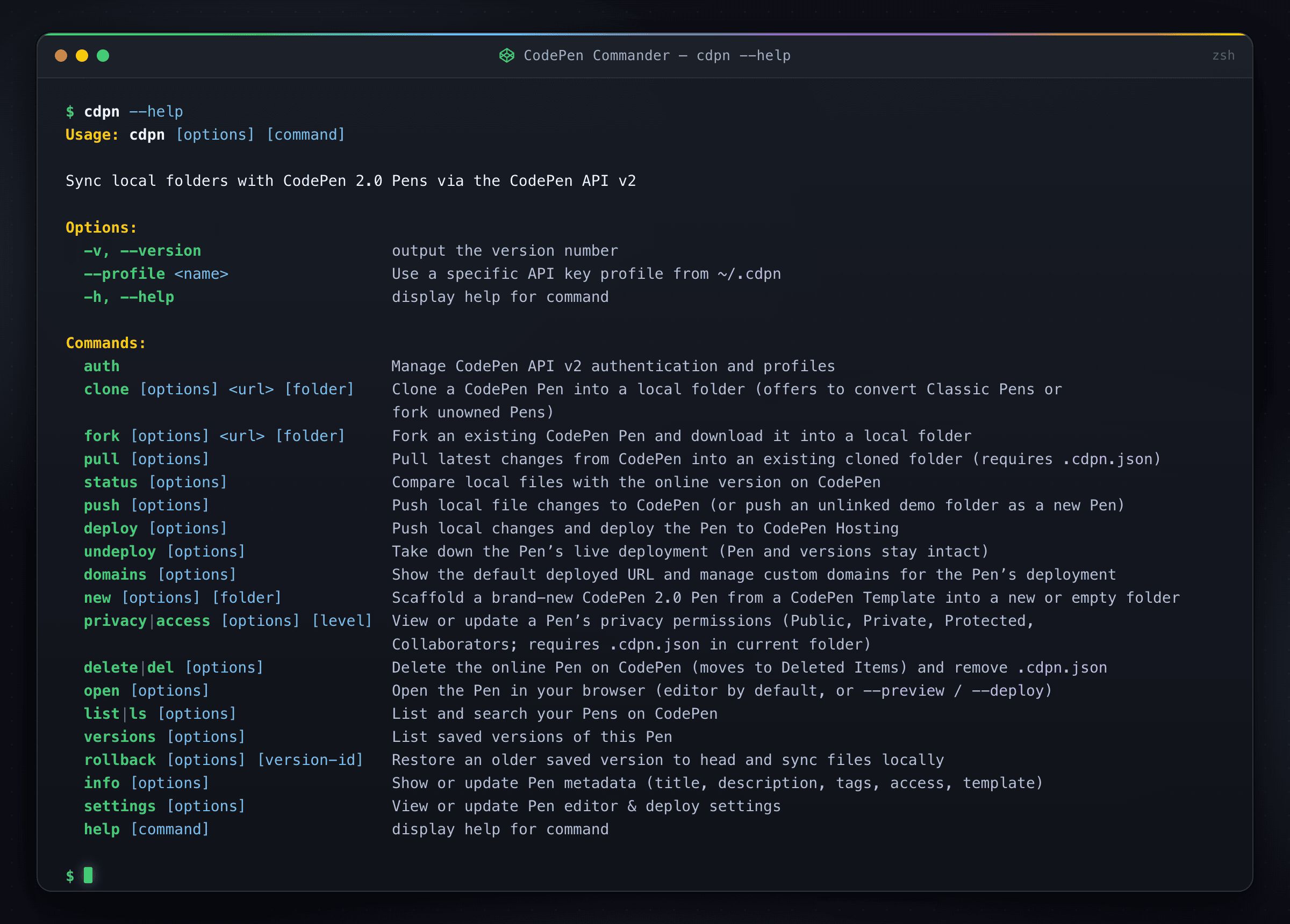
Show as text
Usage: cdpn [options] [command]

Sync local folders with CodePen 2.0 Pens via the CodePen API v2

Options:
  -v, --version                     output the version number
  --profile                   Use a specific API key profile from ~/.cdpn
  -h, --help                        display help for command

Commands:
  auth                              Manage CodePen API v2 authentication and profiles
  clone [options]  [folder]    Clone a CodePen Pen into a local folder (offers to convert Classic Pens or fork
                                    unowned Pens)
  fork [options]  [folder]     Fork an existing CodePen Pen and download it into a local folder
  pull [options]                    Pull latest changes from CodePen into an existing cloned folder (requires
                                    .cdpn.json)
  status [options]                  Compare local files with the online version on CodePen
  push [options]                    Push local file changes to CodePen (or push an unlinked demo folder as a new Pen)
  deploy [options]                  Push local changes and deploy the Pen to CodePen Hosting
  undeploy [options]                Take down the Pen’s live deployment (Pen and versions stay intact)
  domains [options]                 Show the default deployed URL and manage custom domains for the Pen’s deployment
  new [options] [folder]            Scaffold a brand-new CodePen 2.0 Pen from a CodePen Template into a new or empty
                                    folder
  privacy|access [options] [level]  View or update a Pen’s privacy permissions (Public, Private, Protected,
                                    Collaborators; requires .cdpn.json in current folder)
  delete|del [options]              Delete the online Pen on CodePen (moves to Deleted Items) and remove .cdpn.json
  open [options]                    Open the Pen in your browser (editor by default, or --preview / --deploy)
  list|ls [options]                 List and search your Pens on CodePen
  versions [options]                List saved versions of this Pen
  rollback [options] [version-id]   Restore an older saved version to head and sync files locally
  info [options]                    Show or update Pen metadata (title, description, tags, access, template)
  settings [options]                View or update Pen editor & deploy settings
  help [command]                    display help for command
~
The --json flag
Every data and state command also accepts a --json flag. When set, cdpn runs non-interactively and outputs a predictable JSON envelope with HTTP-style status codes — making it easy to plug into shell scripts, CI pipelines, or AI coding agents:
{
  "status": {
    "code": 200,
    "message": "Up to date with CodePen (3 file(s))."
  },
  "contents": {
    "...": "raw command data"
  }
}
~
# Source code
codepen-commander is open source under the MIT license. The full source code, command reference, and documentation are up on GitHub — bug reports, ideas, and pull requests are very welcome! 🙂
~
# Spread the word
Feel free to reshare one of the following posts on social media to help spread the word:
~
🔥 Like what you see? Want to stay in the loop? Here's how:
I can also be found on 𝕏 Twitter and 🐘 Mastodon but only post there sporadically.
