If you read the Safari release notes – like the Safari 26.2 release notes – you see a lot of trailing “(12345678)”-mentions in the list of fixed bugs. These numbers are Apple-internal bug IDs, as used within Apple’s internal bug tracker (fka?) named “Radar”.
These numbers are not linked to anything because Radar is Apple-internal, so to external people these numbers are practically useless … or are they?
~
The need for more info
The thing is, that I sometimes like to look up some details behind something. For example, if I see the following in the release notes, then I’d like to know what the bug exactly was, and maybe also how it got fixed.
Fixed flickering of elements with slow-painting content during view transitions. (160886647)
The only info you get there is the Radar ID, which is 160886647 in this example.
Thankfully the WebKit commits always include a mention of this Radar ID in the commit message. Additionally, the public WebKit bugs also mention it in a comment made by the “Radar WebKit Bug Importer” bot. Using the GitHub and Bugzilla search functionality, you can find your way to the commit and public bug.
~
Finding the Git commit
The Radar ID is mentioned in Git commits in the form of rdar://NUMBER. Leveraging GitHub’s search option and limiting it to only the WebKit/WebKit repo and only commits, you can find the commit linked to the Radar ID.
For example, when searching for rdar://160886647, you get this list:

The direct search URL to use is the following:
https://github.com/search?q=repo%3AWebKit%2FWebKit++%27rdar%3A%2F%2FNUMBER%27&type=commitsWhen clicking through you see all details of the commit.

In both views, you can also find your way to the public WebKit bug.
For reasons unknown to me, not all Radar IDs can be found. For example a commit for 163571747 is nowhere to be found.
~
Finding the public WebKit Bug
In addition to finding the public WebKit Bug through the GitHub commit, you can also find it on WebKit’s public bug tracker which is powered by Bugzilla.
You can’t find the bug using the default search though, because the Radar ID is not mentioned in the bug report itself nor is it listed as a separate metadata field. The Radar ID can be found in an automated comment in the form of <rdar://problem/NUMBER> left by the “Radar WebKit Bug Importer” bot.
To find the bug on Bugzilla, you have to do an advanced search and look for comments that contain that specific string. For example, when doing an advanced search for rdar://problem/160886647, you get this list:

The direct search URL to use it the following:
https://bugs.webkit.org/buglist.cgi?bug_status=RESOLVED&f1=longdesc&list_id=12814258&o1=equals&query_format=advanced&v1=%3Crdar%3A%2F%2Fproblem%2FNUMBER%3EFrom the list, we can click through to the bug itself, where you can indeed see the comment by the “Radar WebKit Bug Importer”:

~
Pro Tip: Register a custom Site Search shortcut in Chrome for easy Radar ID lookup
One of the nice features of Chrome is that it allows you to define a Site Search shortcut (fka Custom Search Engine) by which you can search sites. The cool part is that you’re not really limited to search only, and that you can abuse these Site Search shortcuts to become more productive.
For example, I have a rdar Site Search shortcut that immediately searches the WebKit/WebKit repo for the rdar://NUMBER pattern using the number I pass into it. With it, I just type rdar followed by a space and then the Radar ID in the Chrome address bar. Once I hit enter Chrome will navigate to the GitHub search page and find me the commit linked to that Radar ID 🙂
Pretty easy, right?
To add this to Chrome yourself, navigate to chrome://settings/searchEngines and find the “Site Search” section. There, click on the “Add” button to add a new Site Search short with the following details:
- Name:
Radar - Shortcut:
rdar - URL:
https://github.com/search?q=repo%3AWebKit%2FWebKit++%27rdar%3A%2F%2F%s%27&type=commits
The Name field doesn’t really matter there, but the Shortcut is the keyword that you will be typing in your address bar followed by a space.
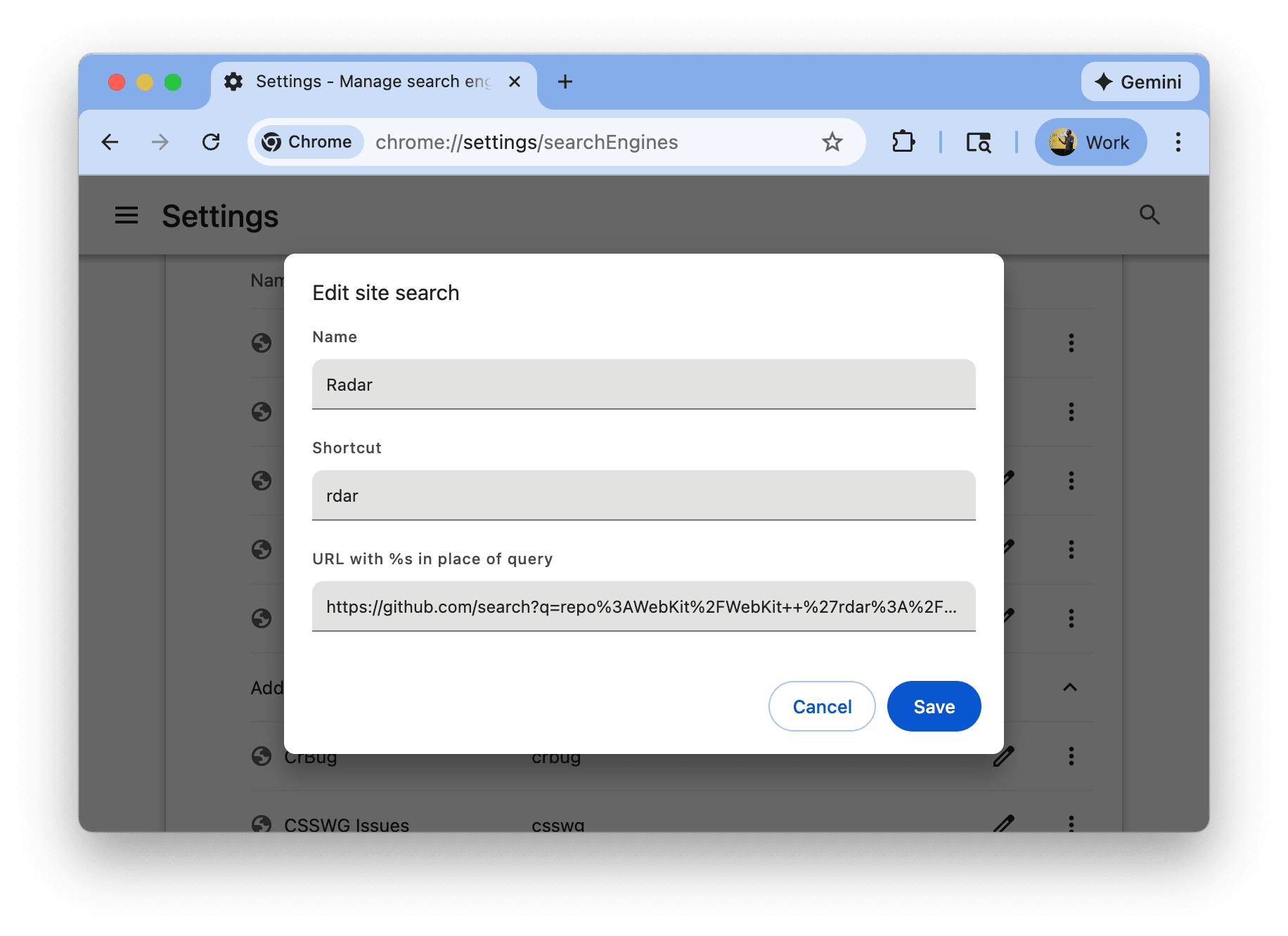
I have use the URL to search GitHub here. You can also use the WebKit link I provided above. Be sure to replace NUMBER in it by %s, which is what Chrome will replace by the “search term” when using it.
~
🔥 Like what you see? Want to stay in the loop? Here's how:
I can also be found on 𝕏 Twitter and 🐘 Mastodon but only post there sporadically.


The pro tip about the Chrome Site Search shortcut is going to save me so much time. I already use shortcuts for Jira and MDN, but adding one for rdar feels like gaining a superpower for browser compatibility debugging. Being able to go from a release note to a code diff in three seconds flat is exactly the kind of workflow optimization I live for.